

Use it in VS Code
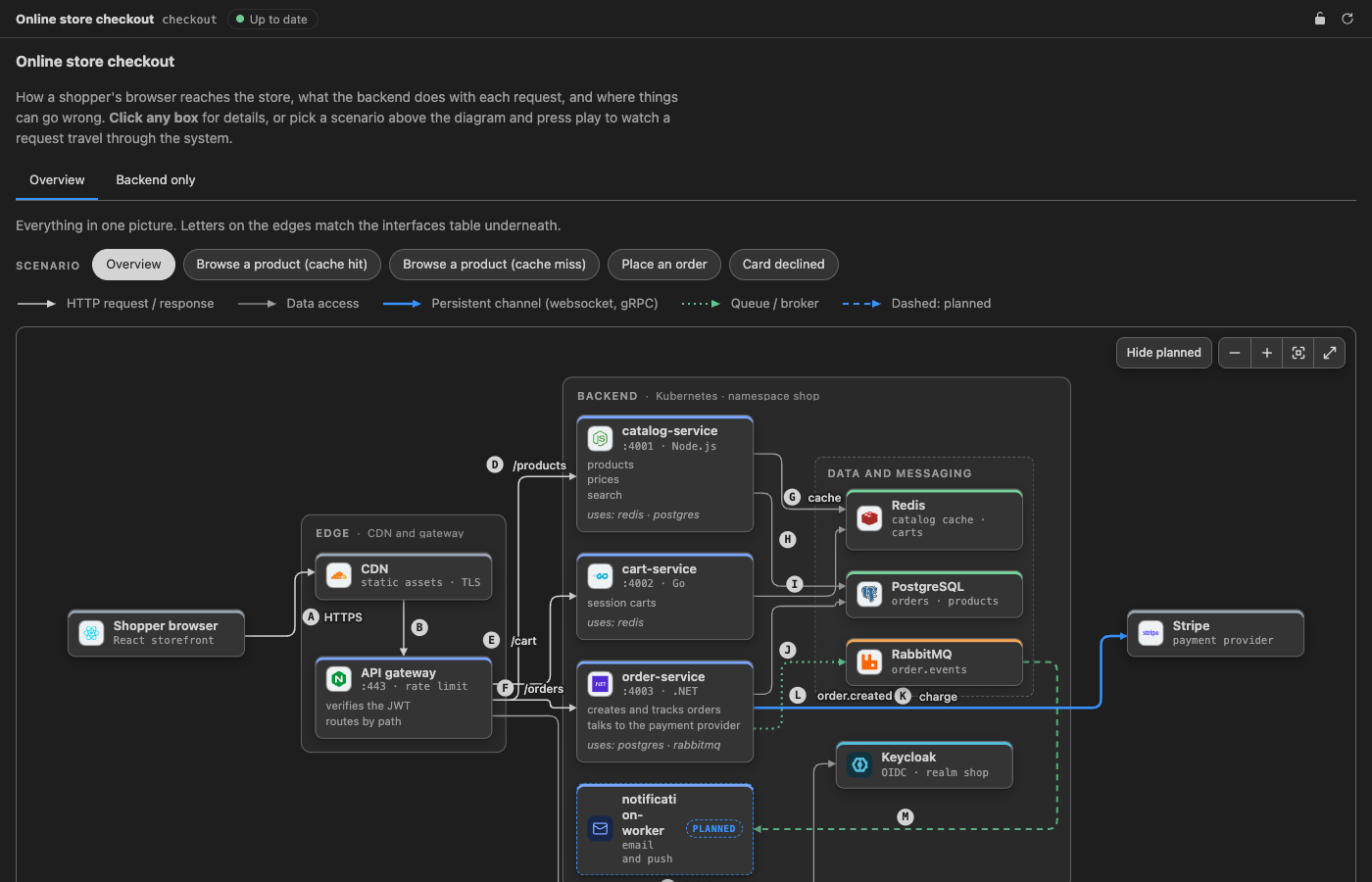
The docspp extension for VS Code makes a diagram as quick to write as it is to read. It highlights the YAML, checks it as you type, completes node ids and icon names, and shows the diagram next to the file, updating on every keystroke.
Install it
Section titled “Install it”Open the Extensions view, search for docspp (publisher packagelab) and install it. Or from a terminal:
code --install-extension packagelab.docspp-vscodeEvery release attaches the extension as a .vsix file on GitHub. Download it and run:
code --install-extension docspp-vscode-0.1.0.vsixOpen any project that has a diagrams/<name>/diagram.yaml. The extension activates by itself.
The live preview
Section titled “The live preview”Open a diagram and press Ctrl+K V (⌘+K V on a Mac), or click the preview button in the editor’s title bar.
- It follows your typing. The preview is built from the text in the editor, saved or not. A setting makes it wait for a save instead.
- It survives mistakes. While the text has an error, the preview keeps the last diagram that worked and lists the problems above it. Click a problem to jump to it.
- It follows your cursor. The node you are editing is outlined in the diagram. Click a node in the diagram and the editor jumps to where it is written.
- It follows you to another diagram when you switch files. The padlock keeps it where it is.
- It is the real thing. Pan, zoom, open a node’s details, switch views and play scenarios as packets, a sequence diagram or a swimlane story. It takes your editor’s colours and fonts, light or dark.
Writing
Section titled “Writing”Problems are the checks docspp check runs, shown in the Problems panel as you type: unknown keys with a suggestion, edges to nodes that do not exist, steps with no route, icons that do not resolve, and refs: that point at files that have since moved.
Completion knows where you are. In a node it offers the node’s keys with their documentation; after kind: it offers the kinds; at the start of an edge or a step it offers your node ids, and after -> the other end.
edges: - web -> | # offers: api, db, ...nodes: api: icon: postgre| # offers: postgresql, ...Navigation works on ids. Go to the definition of a node from an edge or a scenario, find every use of it, or rename it: every edge, step, lane and view in diagram.yaml and in the scenario files changes together, and so does the node’s nodes/<id>.md.
Hover a node for its connections, an icon to see it, a key for what it means. The outline lists nodes, edges, views and the steps of each scenario. The status bar shows the state of the diagram you are editing; click it to see the problems. Help → Welcome → Get started with docspp walks through all of this.
| Command | |
|---|---|
| docspp: Open Preview to the Side | Preview the diagram you are editing |
| docspp: New Diagram | Create diagrams/<name>/ with a working diagram, the same files as docspp new |
| docspp: Insert Icon | Search the icon catalog and insert a name |
| docspp: Check All Diagrams | Compile every diagram in the workspace |
Settings
Section titled “Settings”| Setting | Default | |
|---|---|---|
docspp.diagnostics.enable |
true |
Show errors and warnings in the Problems panel |
docspp.updateDelay |
250 |
Milliseconds to wait after typing before checking and updating the preview |
docspp.preview.refreshOn |
type |
type updates from unsaved text, save waits for a save |
docspp.preview.followCursor |
true |
Outline the node under the cursor in the preview |
Diagram files are recognised by their place: diagrams/<name>/diagram.yaml and diagrams/<name>/scenarios/*.yaml. For a diagram kept somewhere else, point the language at it with VS Code’s files.associations setting. The folder still needs a diagram.yaml.